Introduction
Sometimes a simple message can make you smile, laugh, or feel emotional. In those moments, you may want to react quickly without typing a long reply. That’s where message reactions help.
If you’re searching for how to react to a text message on android, you’re likely trying to find an easy way to show how you feel with just a tap. Maybe someone sent you good news, a funny joke, or a sweet message, and you want to respond fast.
Android phones now make this very easy. You can react to messages with emojis like ❤️, 👍, 😂, 😮, 😢, or 😡. It’s quick, simple, and a great way to show emotion.
In this guide, you will learn how to react to a text message on android step by step. We will also share helpful tips, different reaction options, and easy solutions if the feature is not working on your phone.
Understanding Message Reactions on Android
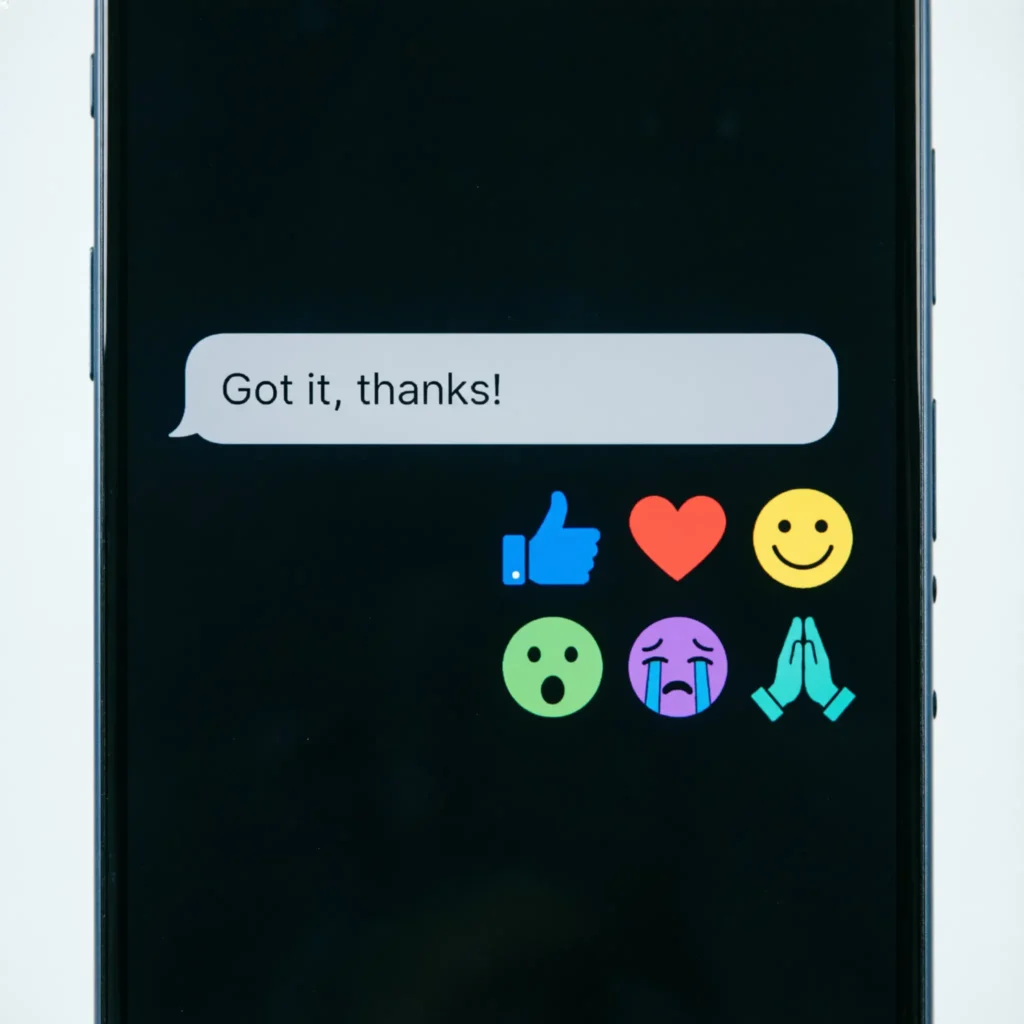
Before learning how to react to a text message on android, it helps to know what message reactions are. These reactions are small emojis you can attach to a message. Instead of writing a reply, you simply tap and choose a reaction.
This feature helps you respond fast and clearly.
Message reactions are useful when:
- You want to show love or appreciation
- A message makes you laugh
- You want to agree
- You want to react without typing
Common reaction emojis include:
- 👍 Like
- ❤️ Love
- 😂 Laugh
- 😮 Surprise
- 😢 Sad
- 😡 Angry
These reactions make texting more fun, quick, and expressive.
How to React to a Text Message on Android (Step-by-Step)
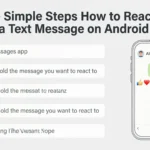
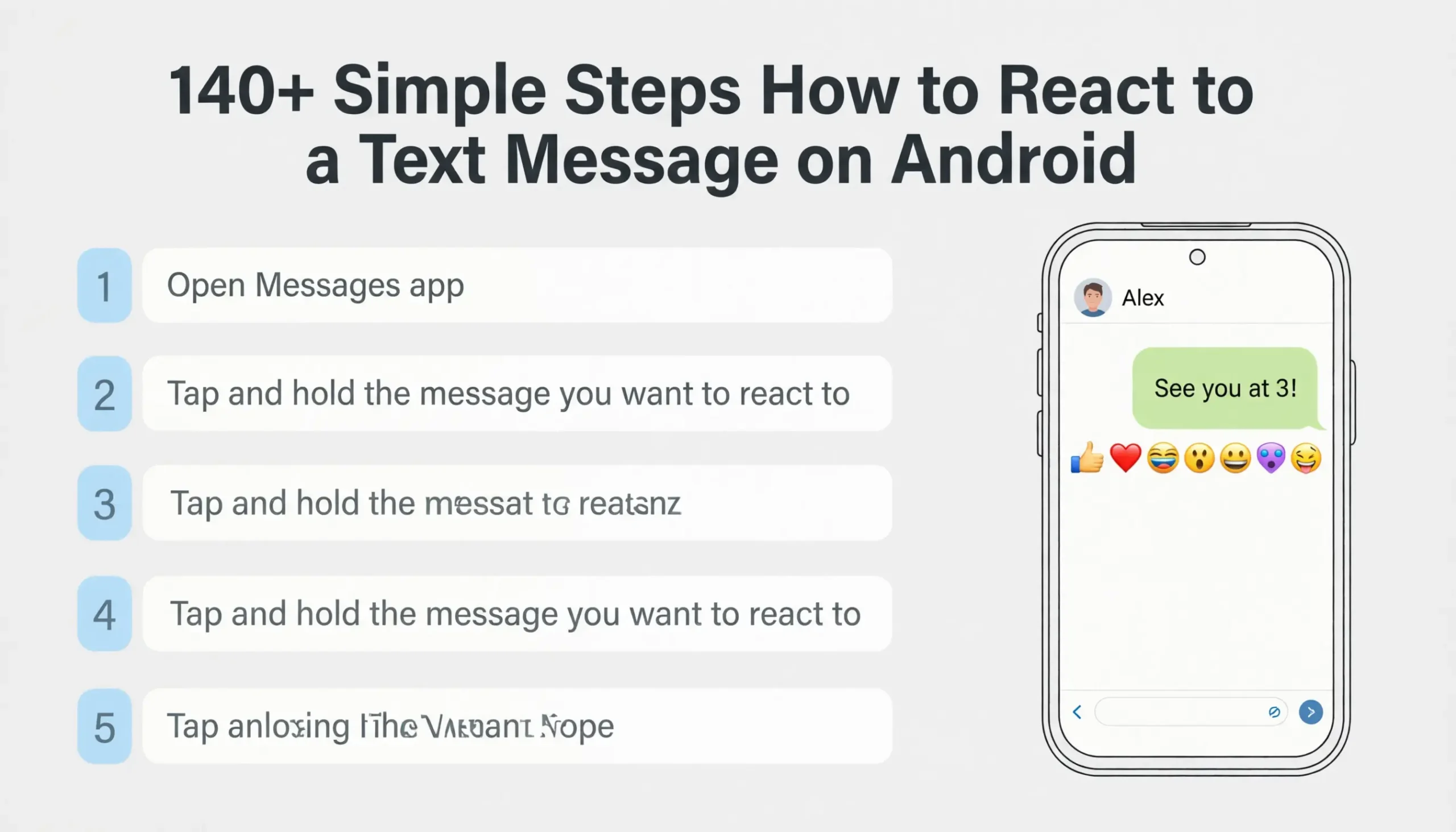
If you want to learn how to react to a text message on android, follow these simple steps. It takes only a few seconds.
1: Open the Messages app on your Android phone.
2: Open the conversation that contains the message you want to react to.
3: Tap and hold the message you want to react to.
4: A row of emojis will appear above the message.
5: Tap the emoji that matches your reaction.
Your reaction will now appear attached to the message.
This is the easiest way to show quick emotion without sending another text.
How to Change Your Reaction
Sometimes you may react to a message and later want to change it. That’s completely normal.
If you already know how to react to a text message on android, changing the reaction is just as easy.
Follow these steps:
- Tap and hold the same message again.
- The emoji options will appear.
- Select a different emoji reaction.
Your new reaction will replace the old one.
This helps you keep your conversations clear and expressive.
How to Remove a Reaction from a Message
Maybe you reacted by mistake. Or maybe you simply changed your mind.
You can easily remove your reaction.
Here is how:
- Tap and hold the message again.
- Tap the same emoji reaction you used before.
Once you tap it, the reaction disappears.
This makes message reactions flexible and easy to control.
Why Message Reactions Are Helpful
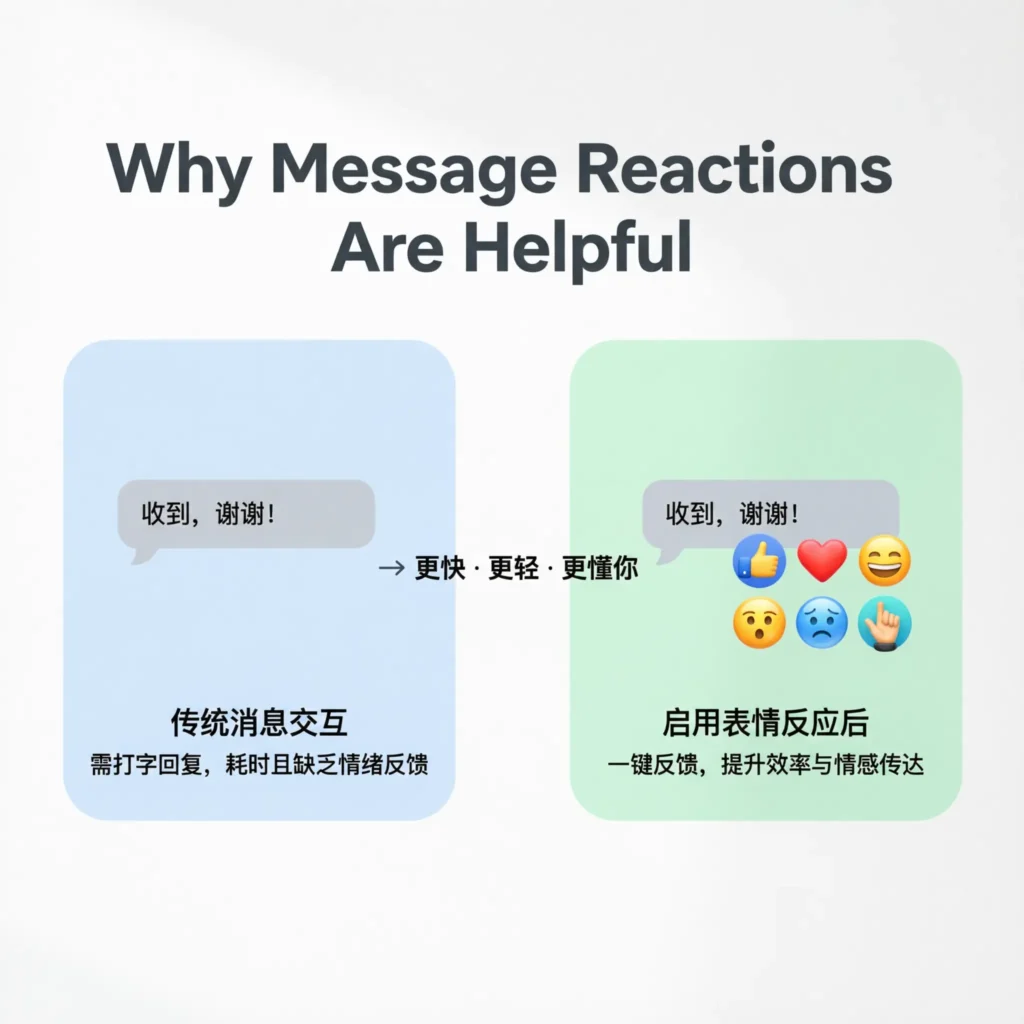
Learning how to react to a text message on android is useful because it saves time.
Instead of typing long replies, you can respond instantly.
Reactions are helpful when:
- You want to say “I like this”
- A friend sends something funny
- Someone shares good news
- You simply want to acknowledge a message
They keep conversations light, fast, and engaging.
If Message Reactions Are Not Working
Sometimes users cannot find the reaction feature. This can happen for several reasons.
If how to react to a text message on android is not working on your phone, try these fixes.
Update your Messages app
Open the Play Store and check for updates.
Update your Android system
Go to Settings → System → Software Update.
Use Google Messages
Some older messaging apps do not support reactions.
After updating, restart your phone and try again.
Which Apps Support Message Reactions
Many Android messaging apps support reactions today.
Common ones include:
- Google Messages
- Facebook Messenger
- Instagram DMs
- Telegram
Each app may show reactions in a slightly different way, but the idea is the same.
Learning how to react to a text message on android makes using these apps easier.
Best Situations to Use Message Reactions
Reactions are perfect for many everyday situations.
You can use them when:
- Someone sends good news
- A friend tells a joke
- Someone shares a photo
- You want to show support
- You want to reply quickly
Instead of typing a full message, a simple emoji can show exactly how you feel.
Tips for Using Message Reactions the Right Way
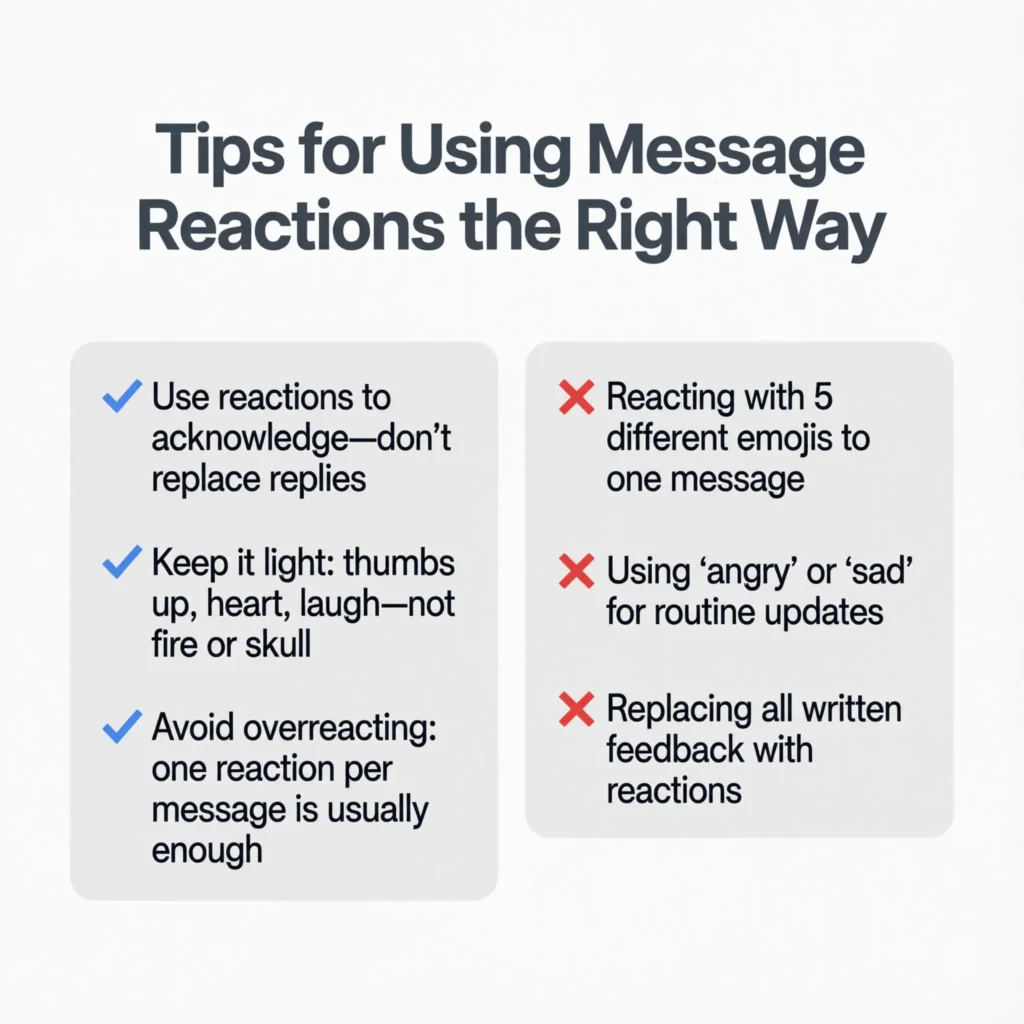
Here are some helpful tips after learning how to react to a text message on android.
Use reactions for short responses
They work best when you want to respond quickly.
Choose the right emoji
Make sure the reaction matches the emotion.
Don’t overuse reactions
Sometimes a full message is better.
Use reactions to stay engaged
They help keep conversations friendly and active.
Quick Emoji Meanings for Reactions
Here are the most common reaction meanings:
👍 Like – You agree or appreciate the message.
❤️ Love – The message is meaningful or sweet.
😂 Laugh – The message is funny.
😮 Wow – You are surprised.
😢 Sad – The message is emotional.
😡 Angry – You disagree or feel upset.
Understanding these reactions makes texting clearer and easier.
FAQ: How to React to a Text Message on Android
Can all Android phones react to text messages?
Most modern Android phones support message reactions, especially when using the Google Messages app.
Why can’t I react to a message?
Your app may need an update. Try updating your messaging app or Android software.
Can I react to SMS messages?
Some SMS messages support reactions, but it depends on the messaging app and phone.
Can I see reactions from iPhone users?
Yes. Newer Android messaging apps can show iPhone reactions as emojis.
Can I remove a reaction later?
Yes. Tap and hold the message again and remove or change your reaction.
Conclusion
Learning how to react to a text message on android is simple, but it can make texting much more fun. With just one tap, you can show love, laughter, surprise, or support without typing a full reply.
Message reactions help you stay connected and respond quickly. They also make conversations feel more lively and emotional.
The next time someone sends you a message that makes you smile, try reacting with an emoji. It’s a small action, but it shows you care and you’re engaged.
And if you enjoyed this guide, feel free to share it with others who want to learn how to react to a text message on android easily.