Introduction
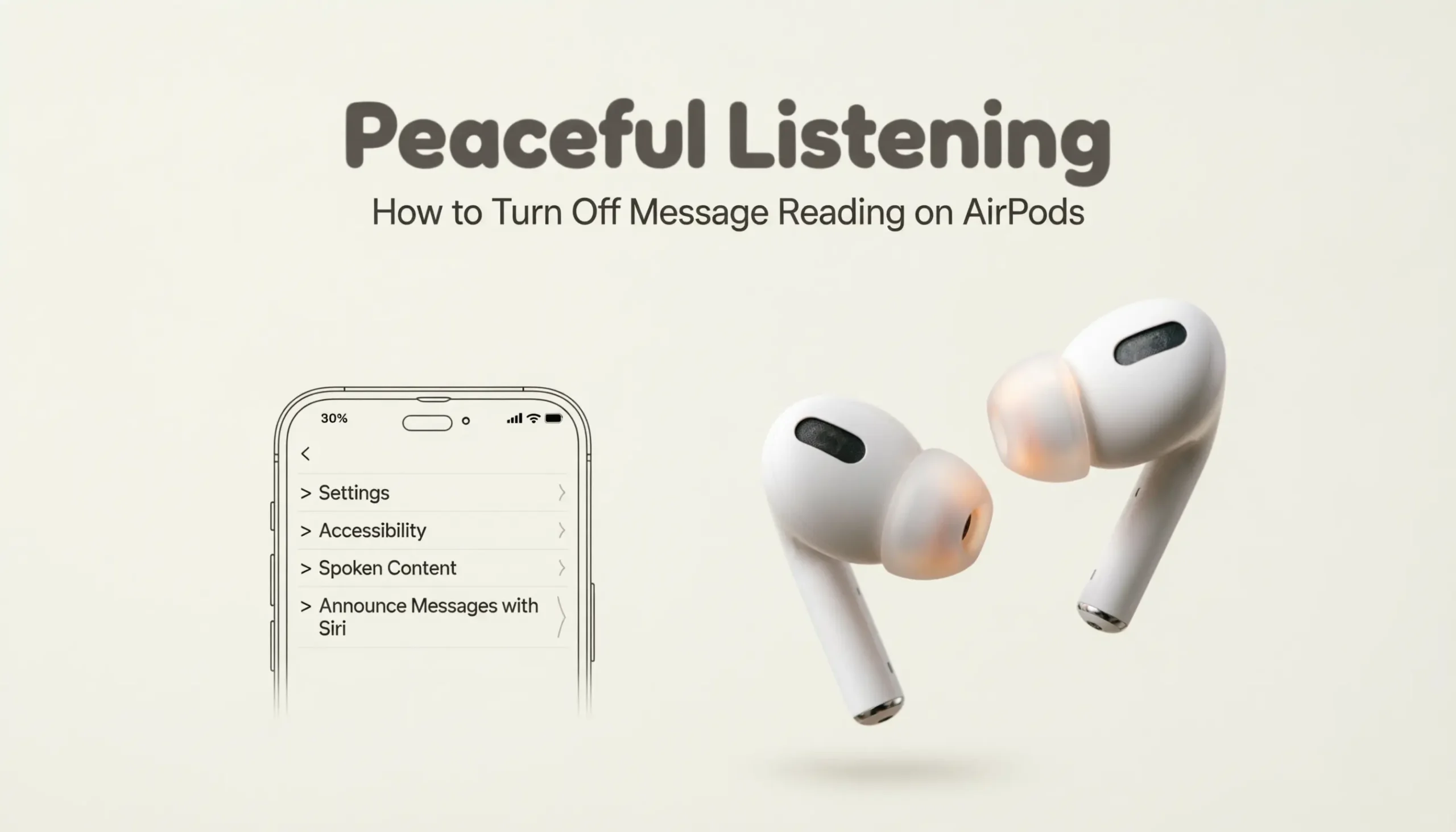
If you’re searching for how to turn off message reading on AirPods, you’re probably tired of your texts being read out loud at the wrong time. It can feel awkward. Or distracting. The good news is, fixing it is simple. In this quick guide, you’ll learn exactly how to turn off message reading on AirPods so you can enjoy your music, calls, and quiet moments without interruptions.
1: How to Turn Off Message Reading on AirPods from iPhone Settings
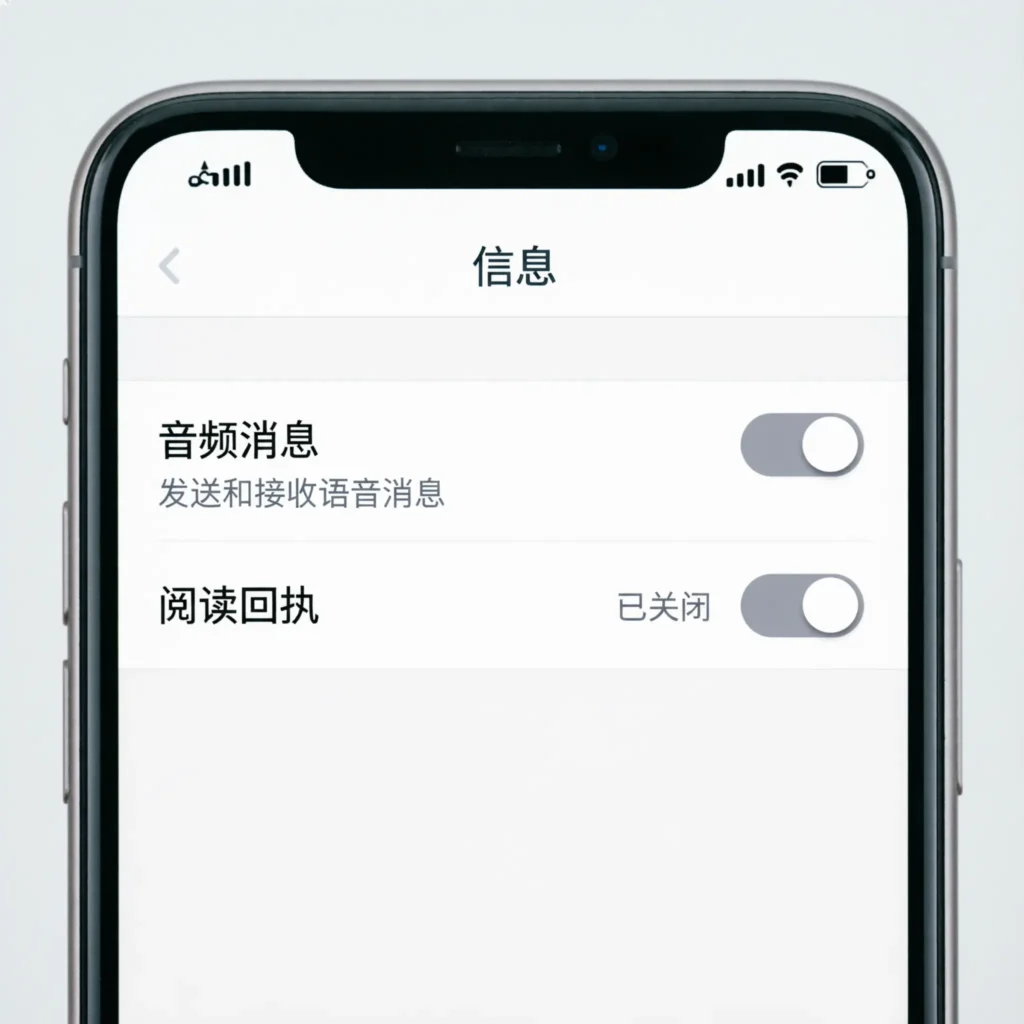
When your AirPods read messages automatically, it’s usually because “Announce Notifications” is turned on. The fix is quick and simple.
Here’s how to stop it:
- Open Settings on your iPhone.
- Tap Notifications.
- Tap Announce Notifications.
- Turn off the toggle at the top.
That’s it.
Now your AirPods won’t read your texts out loud anymore. You stay in control. And your listening time stays peaceful.
2: Turn Off Announce Messages Only for AirPods
Maybe you like announcements in the car but not in your ears. That’s okay. You can adjust it just for AirPods.
Follow these steps:
- Go to Settings.
- Tap Notifications.
- Tap Announce Notifications.
- Under “Announce When Connected To,” turn off Headphones.
This keeps notifications on for other devices but stops them in your AirPods.
It’s a small change. But it makes a big difference.
3: How to Turn Off Message Reading on AirPods Using Siri Settings
Siri plays a big role in reading messages aloud. So if you want more control, check Siri settings too.
Here’s what to do:
- Open Settings.
- Tap Siri & Search.
- Tap Announce Notifications.
- Turn it off completely.
Now Siri will stay quiet unless you ask her to speak.
Sometimes, silence feels like self-care.
4: Turn Off Message Reading for Specific Apps
Maybe you want calls announced but not text messages. Or you want WhatsApp quiet but not iMessage.
You can customize that.
- Go to Settings.
- Tap Notifications.
- Tap Announce Notifications.
- Scroll to the app list.
- Turn off the apps you don’t want announced.
This gives you freedom. You choose what matters.
5: How to Turn Off Message Reading on AirPods Quickly from Control Center
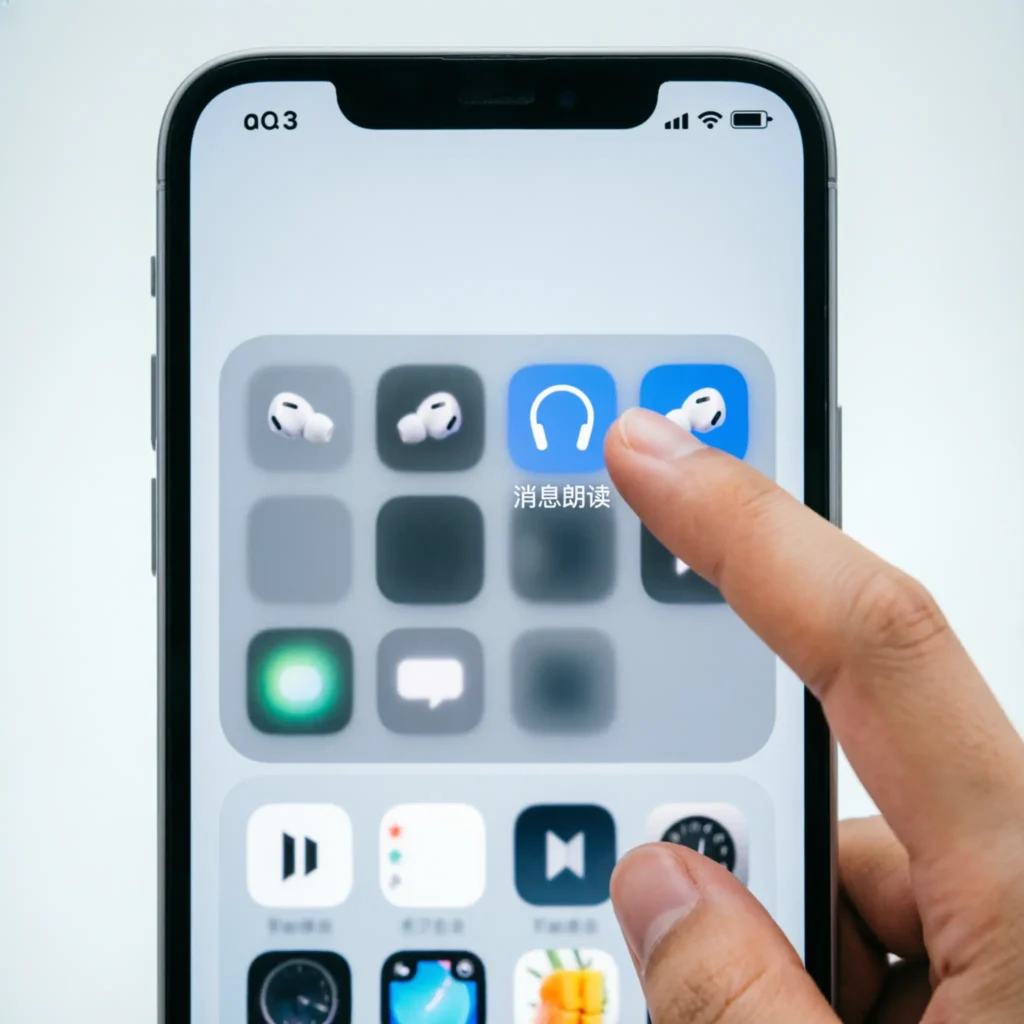
Need a faster way?
You can use Control Center.
- Swipe down from the top-right corner.
- Press and hold the volume bar.
- Tap the Announce Notifications icon to turn it off.
It’s quick. It’s easy. And it keeps your moment uninterrupted.
6: Why Are My AirPods Reading Messages Automatically?
If you didn’t turn it on, don’t worry. Sometimes it activates during setup.
Apple devices like AirPods and iPhone often suggest enabling features for convenience.
But convenience doesn’t always mean comfort.
That’s why knowing how to turn off message reading on AirPods helps you feel more in control of your device — and your space.
7: Does Turning It Off Affect Notifications?
No. And this is important.
When you learn how to turn off message reading on AirPods, you’re only stopping the voice announcement. You will still:
- Receive notifications
- See banners
- Feel vibration alerts
Nothing important is lost. You just remove the voice reading.
You choose peace — without missing what matters.
8: How to Turn Message Reading Back On (If You Change Your Mind)
Life changes. Needs change.
If one day you want message announcements back, just:
- Open Settings.
- Tap Notifications.
- Tap Announce Notifications.
- Turn it back on.
You’re always in control.
9: Tips for a More Peaceful Listening Experience
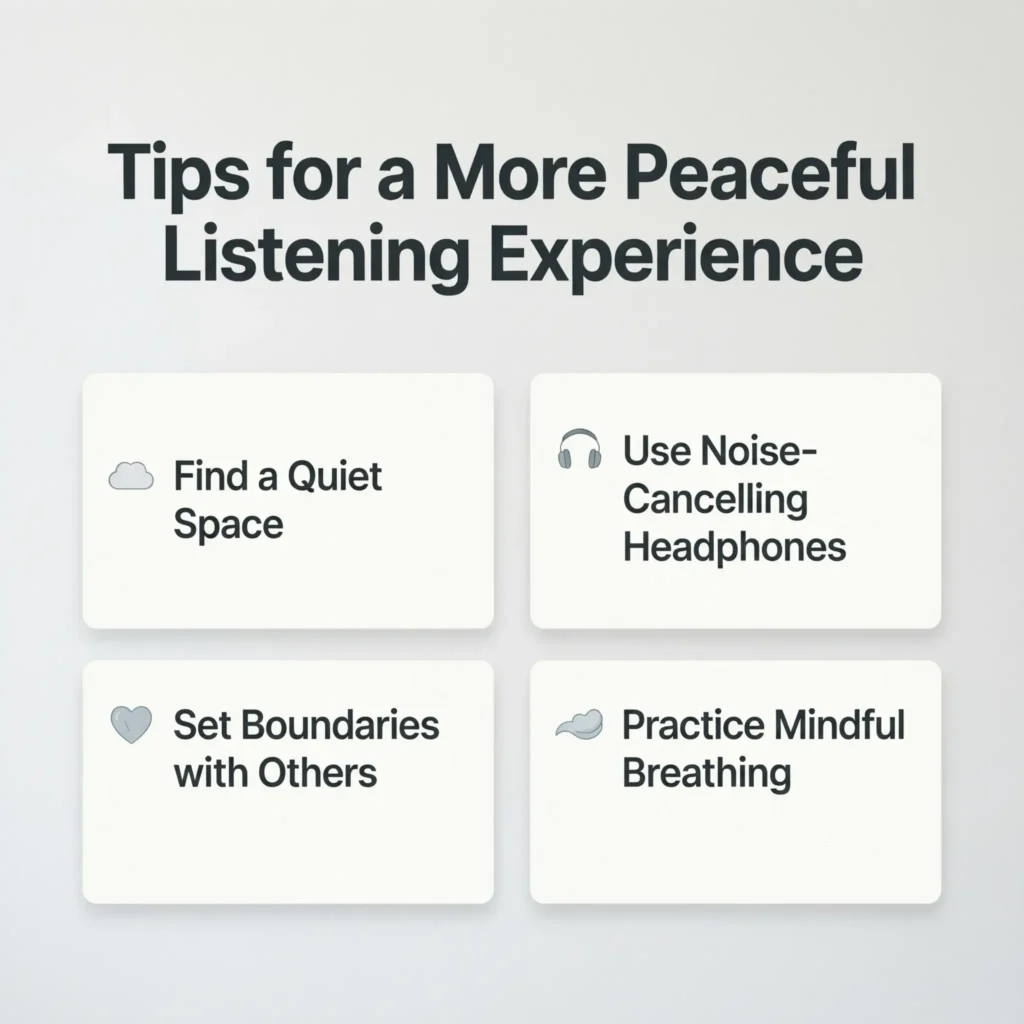
Turning off message reading is one step. But here are more tips:
- Use Do Not Disturb mode.
- Try Focus mode for work or sleep.
- Silence group chats during busy hours.
- Keep only important apps allowed.
Small digital boundaries protect your mental calm.
And that matters.
10: When You Might Want Message Reading On
There are moments when announcements help:
- While driving
- During workouts
- When your hands are busy
- When expecting urgent news
The goal isn’t to remove features. It’s to use them wisely.
Knowing how to turn off message reading on AirPods gives you that power.
FAQ: How to Turn Off Message Reading on AirPods
1. Why are my AirPods reading my texts automatically?
Because “Announce Notifications” is turned on in your iPhone settings.
2. Can I turn it off without affecting calls?
Yes. You can disable specific apps while keeping call announcements.
3. Does this work on all AirPods models?
Yes. Most newer AirPods models support this feature.
4. Can I turn it off temporarily?
Yes. You can disable it quickly from Control Center.
5. Will I still get text alerts?
Yes. Your notifications will still appear normally.
Conclusion
You deserve quiet moments.
You deserve privacy.
And you deserve control over your own devices.
Now you know exactly how to turn off message reading on AirPods — and how to adjust it anytime you need. It’s simple. It’s quick. And it gives you back your calm.
If this guide helped you, feel free to share it with someone who might need a little digital peace too.
Because sometimes, the best sound is silence.